How to download your photos from Facebook and Instagram
Before we can organize your memories, you'll need to download your data from Facebook or Instagram. Here's exactly how to do it — no technical knowledge needed.
⏱ Takes about 5 minutes to request · Instagram usually arrives in hours · Facebook can take 1–2 daysWhat are you downloading?
📘📷 Have both? Do Facebook first, then come back and repeat for Instagram — same steps, just pick Instagram when choosing your account.
Open the download page
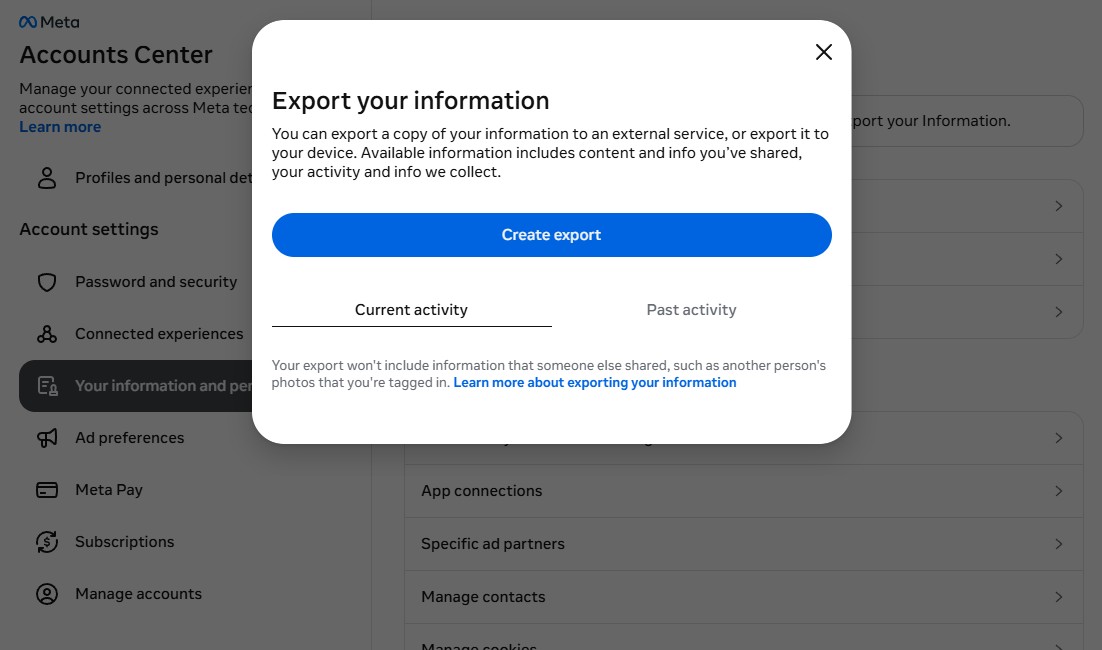
Click this link — you'll see an "Export your information" popup. Click Create export.
tap to enlarge
Choose your account & export location
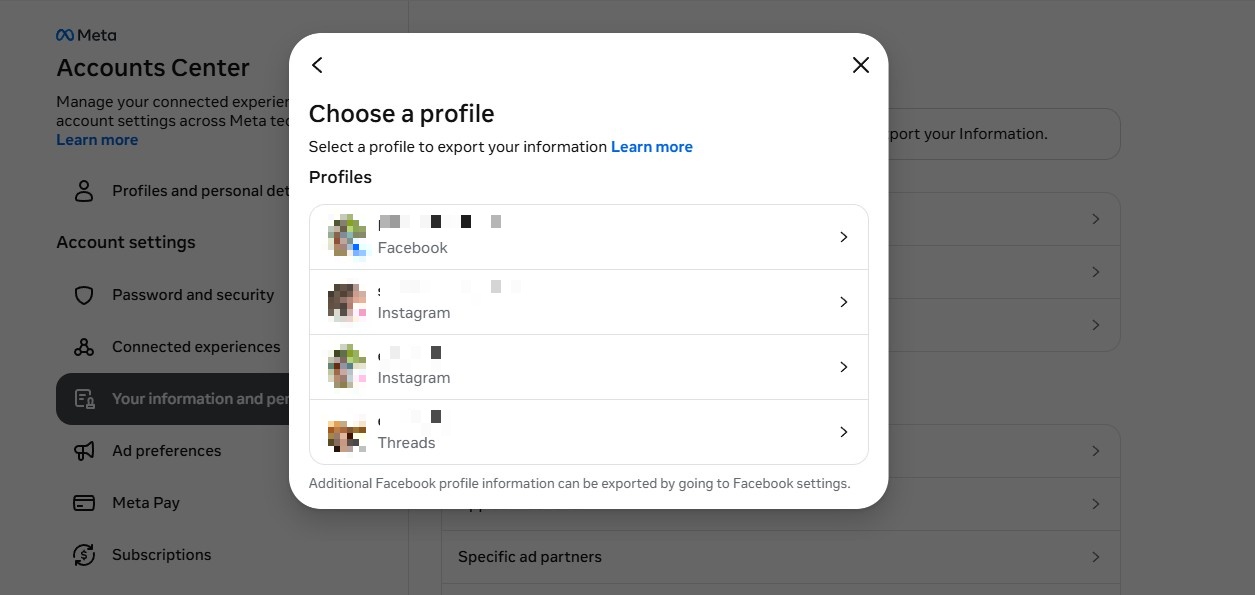
Select your Facebook account — you'll see your name and profile photo. On the next screen choose Export to device.
tap to enlarge
Select what to include
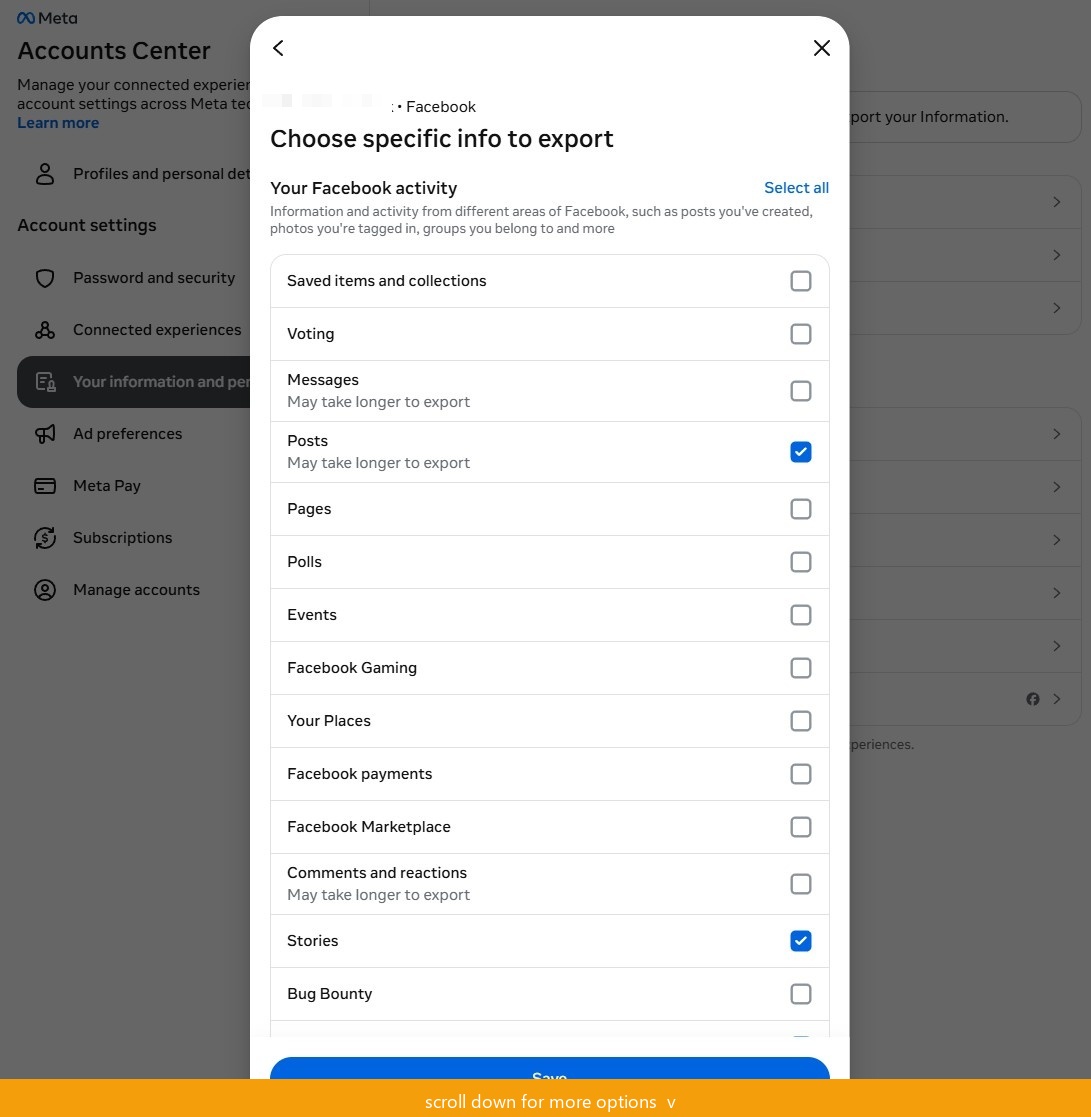
On the "Confirm your export" screen, click Customize information. The list is long — scroll through and check only these:
Your Facebook activity section:
- ✓ Posts
- ✓ Stories
- ✓ Reels
- ✓ Live Videos
- ✓ Groups
Personal information section:
- ✓ Profile information
Connections section:
- ✓ Friends
To protect your privacy, don't check these
- ✕ Messages
- ✕ Security and login information
- ✕ Ads information
- ✕ Data logs — takes 15 days, nothing useful
- ✕ Everything in Logged information, Security, Preferences sections
tap to enlarge
Set your preferences
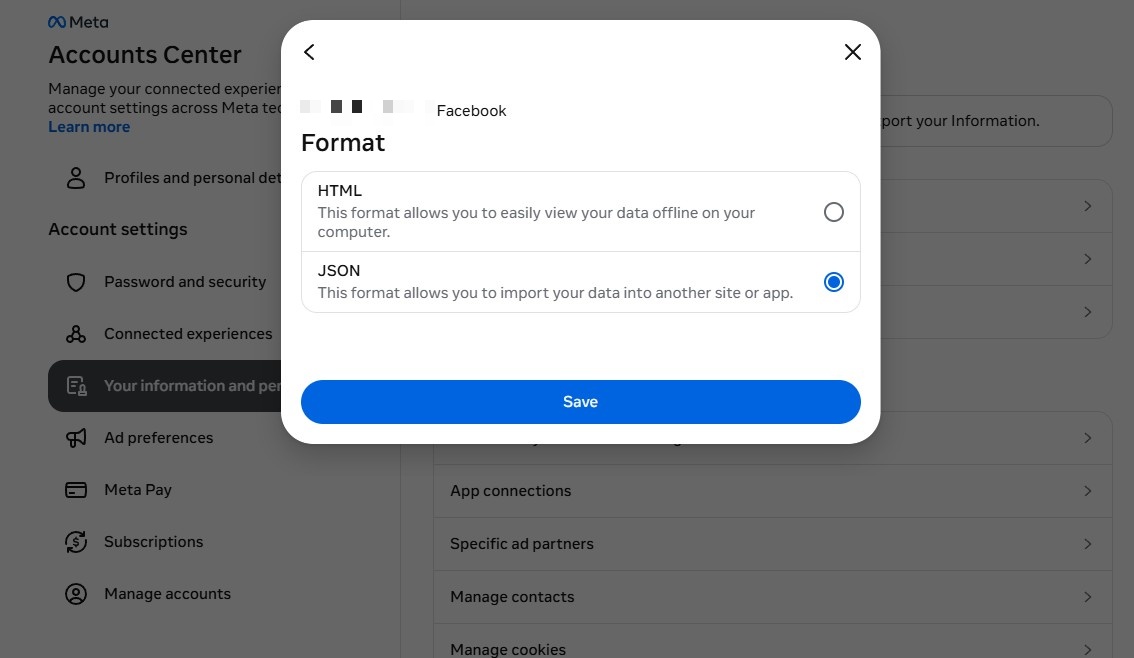
Back on the "Confirm your export" screen, set each option:
- ✓ Date range: All time (or shorter if you only want recent photos)
- ✓ Format: JSON — not HTML
- ✓ Media quality: Higher quality
tap to enlarge
Start the export
Review your settings, then click Start export at the bottom.
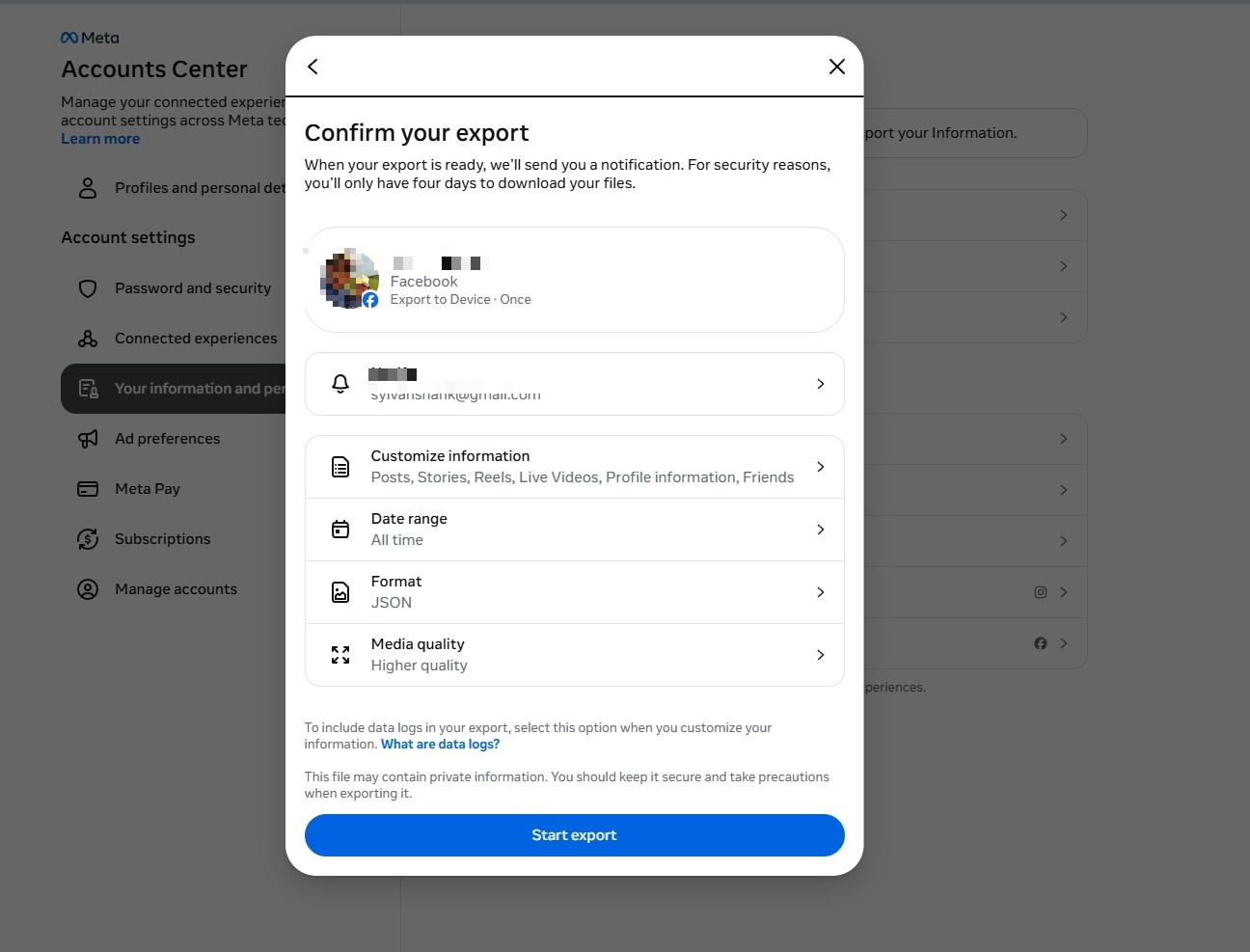
tap to enlarge
Wait for the download email
Facebook will email you when your file is ready — usually a few hours, sometimes up to a couple of days. No need to keep the page open.
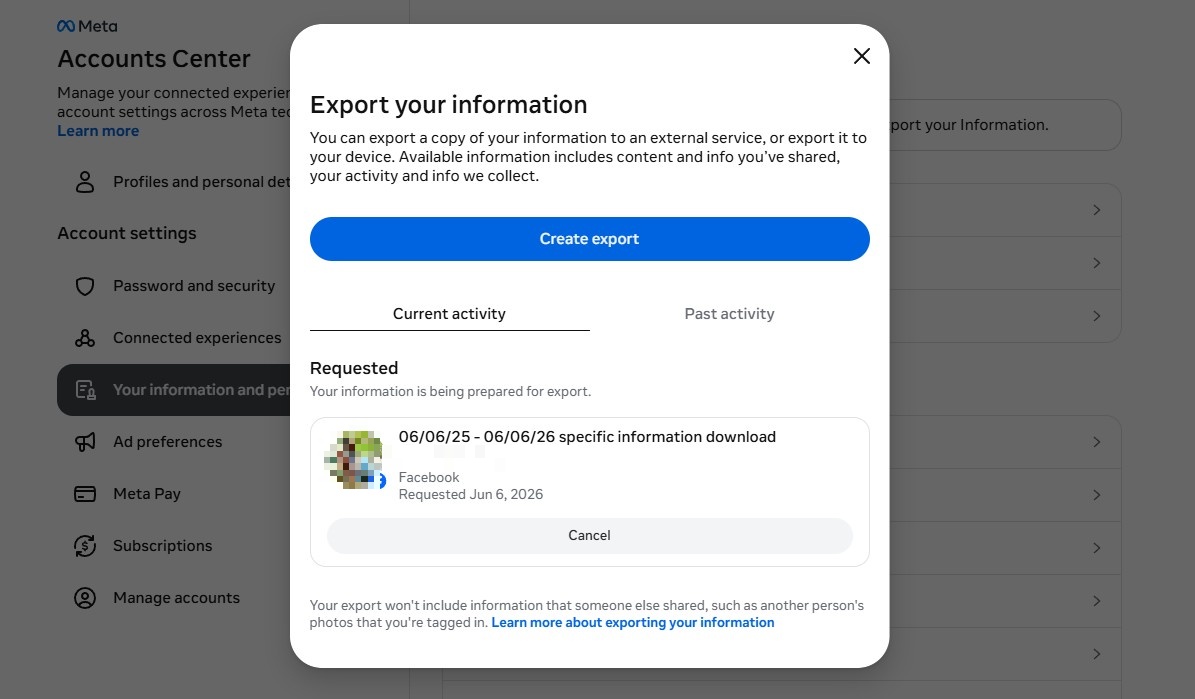
tap to enlarge
Send us the zip file
When the email arrives, click the download link. You'll get a .zip file — don't unzip it, we need it exactly as Facebook sent it. Follow the instructions in your order confirmation email to send it to us.
Open the download page
Click this link — you'll see an "Export your information" popup. Click Create export.
tap to enlarge
Choose your account & export location
Select your Instagram account — you'll see your username and profile photo. On the next screen choose Export to device.
tap to enlarge
Check Media only
On the "Confirm your export" screen, click Customize information. Scroll down the list until you find Media and check it. That's the only item you need — leave everything else unchecked.
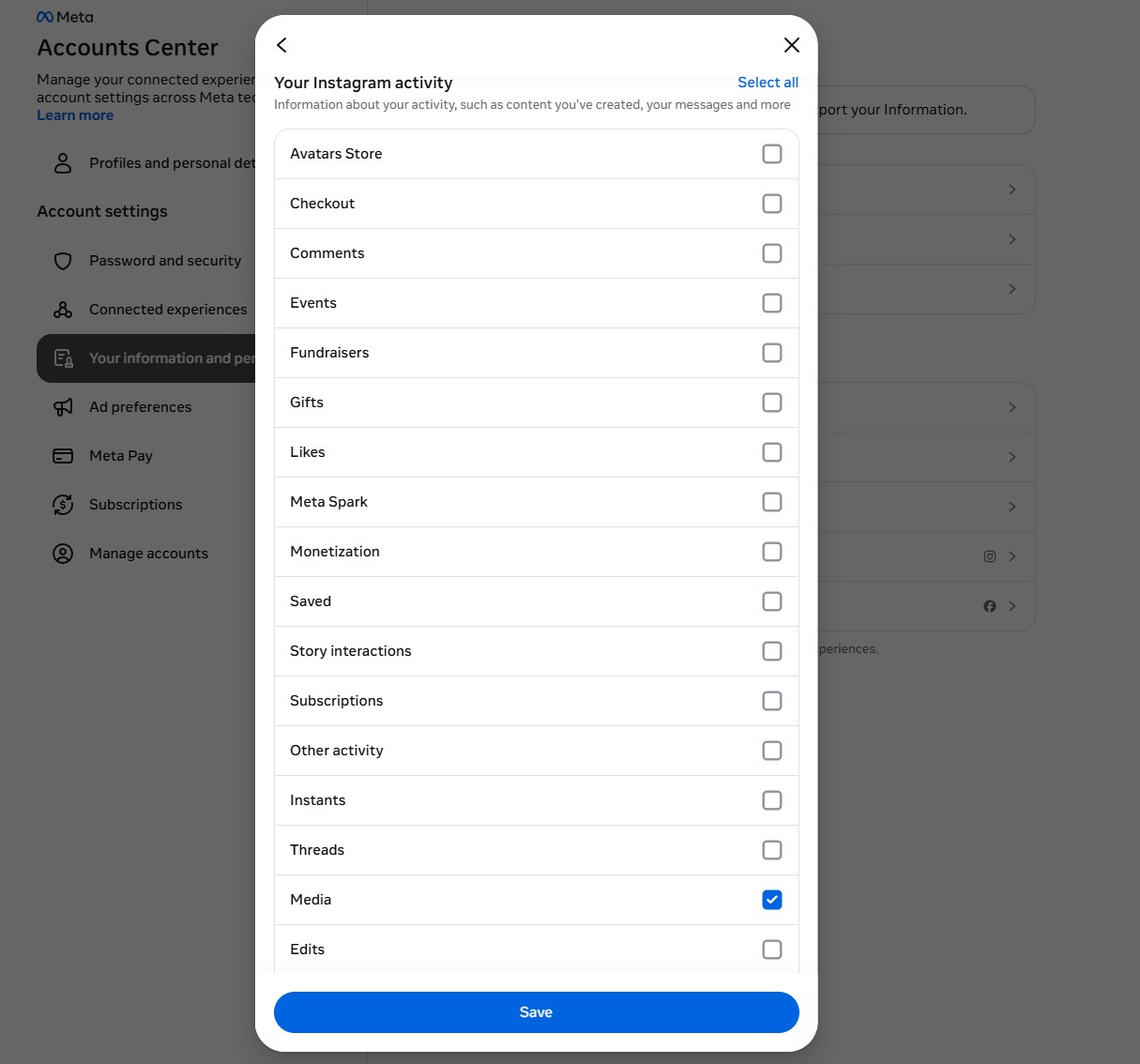
tap to enlarge
Set your preferences
- ✓ Date range: All time (or shorter if you only want recent photos)
- ✓ Format: JSON — not HTML
- ✓ Media quality: Higher quality
Start the export
Click Start export. Instagram will email you when your file is ready.
Wait for the email, then send us the zip
Instagram usually delivers within a few hours. When the email arrives, click the download link — you'll get a .zip file. Don't unzip it; we need it exactly as Instagram sent it. Follow the instructions in your order confirmation email to send it to us.